
QASHI B2B ’s checkout has a friendly, secure and easy to use interface.
It provides a convenient way for your clients (merchants) to complete their payments, splitting invoices and making orders.
-
Selection of Qashi at Checkout
- Client initiates checkout by selecting Qashi at the checkout page on the merchant site.
- Client is redirected to the Qashi modal.
- Client enters their phone number to receive a verification code either to log in to their existing account or to sign up for a new account.
- Client uploads the required information / upload required documents if this is his first purchase with Qashi.
-
Payment through Qashi
- Client gets redirected to Qashi’s checkout page.
- Client confirms the payment plan.
- Client completes their purchase by entering their card information.
-
Confirmation of Order
- Client receives a confirmation message on their screen.
- Client also receives the order confirmation via an SMS and an email from Qashi.
Order Statuses
When integrating with Qashi and connecting your platform with our service, it is necessary to fully understand how the flow of our order statuses work and map them according to your system’s statuses.
Order Status Workflow
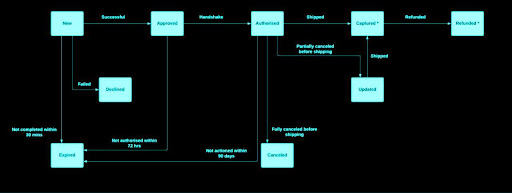
Order Status Description
New Client has initiated the checkout with Qashi as a payment method.
Rejected/Declined The client declined to continue the payment with Qashi.
Expired Client did not complete the payment with Qashi within 30 minutes, or the order was not authorized within 48 hours, or the authorized order was not shipped or canceled within 90 days (our team will contact you in this case). Incomplete orders (declined/ expired) won't be listed on Qashi's partner portal.
Approved The client placed a new order, completed the payment and the payment was approved successfully.
Authorized Qashi verified the client’s payment and authorized the order to be valid. You can consider the order paid at this stage and proceed so.
-
No order should be left pending at Approved status, as it would usually indicate a technical/status sync issue and must be addressed immediately by:
- Authorizing it, then canceling it or capturing it depending on the intended status at your end.
- Double-checking the implemented method for authorization.
- Authorization acts as an order acknowledgement, and it is mandatory for the order to proceed to the next statuses.
Fully Captured The order has been fully shipped by the merchant to the client.
Partially Captured Part of the order has been shipped by the merchant to the client.
- Capturing acts as confirmation that the order will be added to the merchant's next settlement cycle.
- Capture could map to ‘shipping’ or ‘fulfilling’, depending on the merchant use-case and setup.
Fully Refunded The order amount has been fully refunded to the client.
Partially Refunded Part of the order amount has been refunded to the client.
Canceled Order has been completely canceled before shipping (capturing).
Updated (Partially Canceled) Part of the order has been canceled before shipping (capturing). The amount that can be processed via the next status, depends on the amount that was handled at the previous status (Authorized > Captured > Refunded).